Adding Instant Sparkle: A Practical Guide to the Glitter Procreate Brushset
Digital art has come a long way from flat, static colors. Today’s audiences expect texture, depth, and a bit of magic in the visuals they consume on social media, websites, and print materials. This is where a specialized tool like the Glitter Procreate Brushset becomes indispensable for modern creators. Whether you are a seasoned illustrator or a small business owner designing your own marketing materials, adding realistic sparkle can elevate a good design into something memorable.
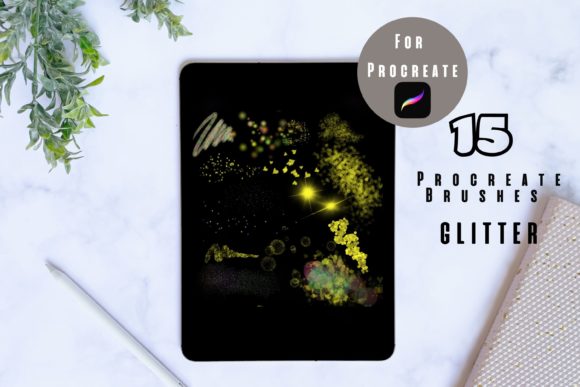
This specific collection includes 15 distinct glitter brushes designed exclusively for the Procreate app on iPad. Unlike generic scatter brushes that often look repetitive or artificial, these tools are engineered to mimic the random, light-reflecting nature of real glitter. The result is a natural shimmer that works seamlessly across various projects, from digital invitations to complex logo designs.
Why Texture Matters in Digital Design
In a digital landscape saturated with clean, minimalist vectors, texture provides a necessary contrast. It adds warmth and tactile quality to screens that are inherently cold and smooth. When you use high-quality glitter effects, you aren’t just adding noise; you are guiding the viewer’s eye. Sparkle naturally draws attention, making it an excellent tool for highlighting key elements in a composition.
For entrepreneurs and marketers, this means higher engagement. An Instagram story featuring a product announcement with subtle glitter accents is more likely to stop a scrolling user than a plain text overlay. For educators and bloggers, textured headers can make educational content feel more inviting and less sterile. The Glitter Procreate Brushset allows users to achieve this level of polish without needing advanced knowledge of layer blending modes or complex particle systems.
Real-World Applications for Creators and Businesses
The versatility of these 15 brushes means they fit into numerous workflows. Here is how different users can integrate them into their daily tasks:
Greeting Cards and Invitations
One of the most popular uses for glitter brushes is in the creation of digital and printable stationery. If you design wedding invitations, birthday cards, or holiday greetings, glitter adds a festive touch that customers love. Instead of relying on stock images of glitter—which can look pixelated when printed—you can paint the effect directly onto your design. This gives you full control over the density and placement of the sparkle. You might use a dense brush for a border on a Christmas card or a sparse, fine mist for a sophisticated wedding monogram.
Logo Branding and Social Media Assets
Small business owners often need to create their own social media graphics before hiring a professional designer. Adding a touch of glitter to a logo reveal video or a promotional post can convey luxury, celebration, or creativity. For beauty brands, boutiques, or event planners, this aesthetic is on-brand. The brushes allow you to accentuate specific letters or icons, creating a focal point that reinforces brand identity. Because the brushes are optimized for Procreate, they render quickly, allowing for rapid iteration during brainstorming sessions.
Illustration and Character Design
Illustrators know that clothing and accessories require detailed texturing to look believable. A sequined dress, a magical spell effect, or shiny jewelry can be time-consuming to paint manually. With this brush set, you can lay down base shapes and then apply glitter textures to simulate light reflection on fabric or gems. This speeds up the workflow significantly, allowing artists to focus on composition and color theory rather than getting bogged down in tedious detailing.
Educational and Hobbyist Projects
Teachers and hobbyists also benefit from these tools. Creating engaging visual aids for children often requires bright, attractive elements. Glitter effects can make reward charts, certificate templates, or classroom decorations more exciting. For hobbyists who enjoy digital journaling or scrapbooking, these brushes add a layer of realism that mimics physical craft supplies, bridging the gap between traditional and digital art forms.
Understanding the Technical Advantage
What sets this Glitter Procreate Brushset apart is its ease of use combined with professional results. Many free brushes available online suffer from poor spacing, unnatural repetition, or lack of pressure sensitivity. These 15 brushes are calibrated to respond to your Apple Pencil’s pressure and tilt. Press harder for denser glitter clusters; lighten your touch for a subtle dusting. This dynamic range ensures that every stroke looks unique and organic.
Furthermore, the variety within the set allows for layered effects. You might start with a coarse glitter brush for the base texture and overlay a finer, sharper brush to simulate individual light reflections. This layering technique creates depth, preventing the "flat" look that plagues amateur digital effects.
How to Import and Get Started
Getting started with your new tools is straightforward, but following the correct steps ensures a smooth experience. Remember, these files are ONLY FOR PROCREATE. They will not work in Photoshop, Clip Studio Paint, or other software.
- Download the Files: Once you purchase or download the brush set, locate the file on your iPad. It is usually saved in your "Files" app or your browser’s download folder.
- Locate the File: Open the Files app and navigate to the folder where the brush set is stored. The file will typically have a .brushset extension.
- Import Automatically: Simply double-tap the file or right-click (if using a trackpad) and select "Open in Procreate." The app will launch automatically, and the brushes will be imported into your library.
- Verify Installation: Open Procreate and tap on the Brush Library icon. Scroll through your brush sets to find the new folder, usually named after the download. You should see all 15 glitter brushes ready to use.
If the brushes do not appear immediately, try restarting the Procreate app. Ensure your iPadOS and Procreate versions are up to date to avoid compatibility issues.
Considerations Before You Start
While these brushes are powerful, effective use requires some consideration. First, think about your canvas resolution. Glitter details are fine and intricate. If you are working on a low-resolution canvas, the glitter may appear blurry or blocky. Always start with a high-resolution document, especially if you plan to print your designs.
Second, consider color contrast. Glitter shines brightest against darker backgrounds. On white or pastel backgrounds, you may need to adjust the layer blend mode—using options like "Multiply" or "Overlay"—to ensure the sparkle is visible. Experimenting with blend modes is part of the creative process and can yield unexpected, beautiful results.
Finally, remember that less is often more. Overusing glitter can overwhelm a design and make it look cluttered. Use these brushes strategically to highlight specific areas rather than covering entire compositions. This approach maintains professionalism while still adding that desired touch of glamour.
In conclusion, the Glitter Procreate Brushset is more than just a decorative add-on; it is a practical tool for enhancing visual communication. By understanding where and how to apply these textures, creators across industries can produce more engaging, polished, and professional work. Whether you are designing a invite for a special event or adding flair to a digital illustration, these 15 brushes provide the flexibility and quality needed to bring your creative vision to life.